ArcGIS Maps Setup
This section describes the setup steps for integrating the ArcGIS Maps SDK with MapConductor.
Prerequisites
- Android development environment
- ArcGIS developer account
- ArcGIS API key
Setup Steps
1. ArcGIS Developer Dashboard Configuration
- Sign up for an ArcGIS Developer account
- Go to the ArcGIS Developer Dashboard
- Create a new application or select an existing one
- Generate an API key with appropriate scopes
- Note the API key for use in your app
2. Gradle Configuration
Ensure the Esri Maven repository is configured (this repository already includes it in settings.gradle.kts):
dependencyResolutionManagement {    repositoriesMode.set(RepositoriesMode.FAIL_ON_PROJECT_REPOS)    repositories {        google()        mavenCentral()
// Esri public repository for ArcGIS Maps SDK maven { url = uri("https://esri.jfrog.io/artifactory/arcgis") } }}dependencyResolutionManagement { repositoriesMode = RepositoriesMode.FAIL_ON_PROJECT_REPOS repositories { google() mavenCentral()
// Esri public repository for ArcGIS Maps SDK maven { url "https://esri.jfrog.io/artifactory/arcgis" } }}Add the Secrets Gradle Plugin to your project’s root build.gradle.kts or build.gradle:
// (root)/build.gradle.ktsplugins { id("com.google.android.libraries.mapsplatform.secrets-gradle-plugin") version "2.0.1" apply false}// (root)/build.gradleplugins { id 'com.google.android.libraries.mapsplatform.secrets-gradle-plugin' version '2.0.1' apply false}Then, add the dependencies and apply the plugin in your app’s build.gradle.kts or build.gradle:
plugins {    // ... other plugins    id("com.google.android.libraries.mapsplatform.secrets-gradle-plugin")}
dependencies {    // ArcGIS Maps SDK    implementation(platform("com.esri:arcgis-maps-kotlin-toolkit-bom:200.7.0"))    implementation("com.esri:arcgis-maps-kotlin:200.7.0")    implementation("com.esri:arcgis-maps-kotlin-toolkit-geoview-compose")    implementation("com.esri:arcgis-maps-kotlin-toolkit-authentication")
    // MapConductor BOM for version management (v1.1.7)    implementation(platform("com.mapconductor:mapconductor-bom:1.1.7"))
// MapConductor modules (versions managed by BOM) implementation("com.mapconductor:core") implementation("com.mapconductor:for-arcgis")}plugins { // ... other plugins id 'com.google.android.libraries.mapsplatform.secrets-gradle-plugin'}
dependencies { // ArcGIS Maps SDK implementation platform("com.esri:arcgis-maps-kotlin-toolkit-bom:200.7.0") implementation "com.esri:arcgis-maps-kotlin:200.7.0" implementation "com.esri:arcgis-maps-kotlin-toolkit-geoview-compose" implementation "com.esri:arcgis-maps-kotlin-toolkit-authentication"
// MapConductor BOM for version management (v1.1.7) implementation platform("com.mapconductor:mapconductor-bom:1.1.7")
// MapConductor modules (versions managed by BOM) implementation "com.mapconductor:core" implementation "com.mapconductor:for-arcgis"}The Secrets Gradle Plugin automatically reads your secrets.properties file and can inject values into your AndroidManifest.xml at build time.
3. Android Manifest Configuration
Add the ArcGIS API key placeholder to your AndroidManifest.xml:
<manifest>    <!-- Add internet and location permissions -->    <uses-permission android:name="android.permission.INTERNET" />    <uses-permission android:name="android.permission.ACCESS_COARSE_LOCATION" />    <uses-permission android:name="android.permission.ACCESS_FINE_LOCATION" />
    <application>        <!-- ArcGIS API Key -->        <meta-data            android:name="ARCGIS_API_KEY"            android:value="${ARCGIS_API_KEY}" />    </application></manifest>
4. API Key Configuration
Add your actual API key to your secrets.properties file. The Secrets Gradle Plugin automatically replaces ${ARCGIS_API_KEY} in your AndroidManifest.xml with the actual value from this file.
ARCGIS_API_KEY=your_actual_arcgis_api_key_here5. License Configuration
ArcGIS SDK requires proper license configuration. Configure licensing in your application:
// In your Application class or MainActivity// ArcGISEnvironment.setLicense("your_license_key_here") // Optional for basic useVerification
To verify your ArcGIS setup:
- Build and run your app
- Check that the ArcGIS map displays correctly
- Test GIS-specific features (if using)
- Verify authentication is working
@Composablefun TestArcGIS() {    val state = rememberArcGISMapViewState(        cameraPosition =            MapCameraPosition(                position = GeoPoint.fromLatLong(0.0, 0.0),                zoom = 5.0,            ),    )
    ArcGISMapView(        modifier = modifier,        state = state,    ) {        // If this displays correctly, your setup is working    }}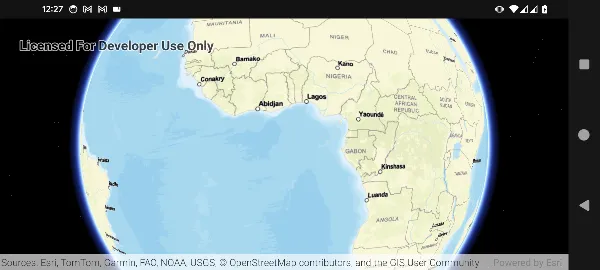
Troubleshooting
Common Issues
Map not loading
- Verify API key is correct in
secrets.properties - Check that the API key has proper scopes in ArcGIS Dashboard
License errors
- Ensure
ArcGISEnvironment.setApiKey()is called before using the map - For production apps, configure proper licensing according to Esri documentation
Build errors
- Ensure ArcGIS SDK coordinates match your project configuration
- Verify BOM is used for version management
- Check that Compose toolkit dependencies are included
Next Steps
Once ArcGIS Maps SDK is properly configured, you can use MapConductor’s ArcGISMapView component with the unified API.